This guide walks through the whole setup for a team of sports memory mates, with a sample CSV for three players, the menu paths in current Photoshop, and the fixes for the "could not parse" error that stops most people the first time. It also covers what data sets can't do: team and class composites. Photoshop is made by Adobe; RosterFrame isn't affiliated with Adobe.
How do Photoshop variables work for memory mates?
A variable is a layer that changes from one version of the file to the next, and a data set is one set of values for all the variables, in practice one player. Photoshop has three kinds of variables, and a memory mate uses two of them.
| Variable type | What it changes | On a memory mate |
|---|---|---|
| Text Replacement | The text of a type layer | First name, last name, jersey number, team name |
| Pixel Replacement | The pixels of a layer, from another image file | Player portrait, team photo |
| Visibility | Shows or hides a layer (true or false in the file) | Optional: a Coach badge, a Captain tag, a second logo |
The setup takes one template and one spreadsheet per team. Once it works, a new team is a new CSV file, not a new evening of copy and paste.
How do I make a memory mate in Photoshop with data sets, step by step?
Build the 8 × 10" template, turn its name, number and photo layers into variables, import a CSV with one row per player, export the data sets as files, then convert them to JPEG in one batch. The six steps below use the menu paths from Adobe's Photoshop User Guide.
1. Build the 8 × 10" template
- Make a new document at the print size: 8 × 10" portrait for a player card, or 10 × 8" landscape for side by side, at 300 pixels per inch (2400 × 3000 or 3000 × 2400 pixels).
- Add a placeholder layer for the player photo: a normal pixel layer with a solid rectangle exactly where the portrait goes. The rectangle is the box the replacement photo is fitted into, so draw it at the final size.
- Add a second placeholder rectangle for the team photo, on its own layer.
- Add type layers for the first name, last name and number, and one for the team name if it changes. Type a long name like "Christopher Vanderberg" to check that it still fits.
- Keep your background, frame and logo on other layers. Variables can't be defined on the Background layer, so the placeholders must be normal layers above it.
2. Define the variables
- Choose Image › Variables › Define.
- Pick the first name layer in the Layer menu, tick Text Replacement, and name the variable
firstName. Do the same forlastName,numberandteam. - Pick the player photo placeholder, tick Pixel Replacement, and name it
playerPhoto. Set the method to Fill, choose the alignment (top center keeps heads in the frame), and tick Clip To Bounding Box, so every headshot fills its box without stretching. - Do the same for the team photo placeholder and name it
teamPhoto.
Variable names must start with a letter, an underscore or a colon and can't contain spaces, so use firstName, not "First Name". Layers with variables get an asterisk in the dialog's Layer menu.
Tip for file names: add one more text layer, hide it with the eye icon, and make it a Text Replacement variable named fileName. Put it in the first column of the CSV and the exported files can be named after each player instead of Data Set 1, 2 and 3.
3. Make the CSV data set
Make a spreadsheet with one column per variable and one row per player, then save it as a comma-separated CSV or a tab-delimited text file. The first line holds the variable names, spelled exactly as in the PSD, and every following line is one data set.
fileName,firstName,lastName,number,team,playerPhoto,teamPhoto
Martinez_Ava_4,Ava,Martinez,4,Hawks U12,/Users/you/Hawks/Ava_Martinez_4.jpg,/Users/you/Hawks/Team.jpg
Chen_Leo_11,Leo,Chen,11,Hawks U12,/Users/you/Hawks/Leo_Chen_11.jpg,/Users/you/Hawks/Team.jpg
OBrien_Maya_23,Maya,O'Brien,23,Hawks U12,/Users/you/Hawks/Maya_OBrien_23.jpg,/Users/you/Hawks/Team.jpg- Image paths: use the full path to each photo, like the Mac paths above or
C:\Photos\Hawks\Ava_Martinez_4.jpgon Windows. If the CSV sits in the same folder as the photos, the file name alone also works. - Every variable needs a column. If the PSD has 7 variables, the CSV needs exactly 7 columns, in any order.
- Commas inside a value, like
Smith, Jr., need double quotes around the whole value:"Smith, Jr.". - Jersey numbers with a zero, like
07, lose the zero in Excel unless the column is formatted as text before you type.
Already have a roster? The columns in the team roster template map straight onto these variables: copy First, Last, Number and Team across and add the two photo path columns.
4. Import the data set
- Choose Image › Variables › Data Sets and click Import, or use File › Import › Variable Data Sets.
- Select the CSV. Tick Use First Column For Data Set Names (that's why
fileNamecomes first) and leave Encoding on Automatic. - Tick Preview and step through the players with the arrows. Check long names, crops and the team photo before exporting. Note that applying a data set overwrites the open document, so keep a saved copy of the template.
5. Export the data sets as files
Choose File › Export › Data Sets As Files, pick a new, empty destination folder, choose the file naming, select all data sets and click OK. Photoshop writes one layered PSD per player.
6. Convert to JPEG with Image Processor or Batch
Labs want flat JPEGs, so convert the PSDs in one pass. Choose File › Scripts › Image Processor, select the export folder, tick Save As JPEG with quality 12 and Convert Profile To sRGB, and click Run. The JPEGs land in a JPEG subfolder. If you need extra steps, such as sharpening or a flatten, record them as an action and pick it under Run Action, or run the same action on the folder with File › Automate › Batch.
Is there a Photoshop action for memory mates?
Not one that does the whole job: an action replays recorded steps on the open file, but it can't type a different name for each player or choose which photo goes in which box. The usual setup is data sets for the names and photos, plus an action for the finishing steps that are the same for everyone.
For the finishing steps, File › Automate › Batch runs one action on every file in a folder, which suits the exported PSDs. The per-player part, names, numbers and photos, stays with the data sets.
Why does Photoshop say the data set can't be parsed?
Almost always because the first line of the file doesn't match the variables in the PSD: a missing or extra column, a different spelling, or a file separated by semicolons instead of commas or tabs. Every variable in the PSD needs exactly one column, with the same name, and every row needs the same number of values.
The usual message is "Could not parse the file contents as a data set. There were not enough variable names in the first line of the text file." Work through this checklist:
- Count the columns. The first line must name every variable defined in the PSD, no more and no less. A leftover column like Parent Email or Birth Date breaks the import, so delete it.
- Match the names exactly. The headers must match the variable names in Image › Variables › Define, not the layer names.
firstnameis notfirstName. - Use commas or tabs. Excel in many European languages saves CSV files with semicolons. Re-save with commas, or as tab-delimited text with a
.txtextension. - Remove empty lines and trailing spaces. A blank row at the end of the file or spaces after the last value in a row can trip the import. Open the CSV in a plain text editor to see them.
- Quote values with commas. A name like
Smith, Jr.without quotes counts as two values and shifts every column after it. - Check the encoding. If the first variable name shows strange characters in front of it, the file starts with a hidden byte-order mark. Pick the encoding by hand in the import dialog or re-save the file without it.
- Check the photo paths. A typo in a path, or a photo that was renamed or moved, stops that data set. Copy paths from the file browser instead of typing them.
How do I put names and numbers on sports photos in bulk?
Use a spreadsheet as the source and let software place the text: Photoshop data sets fill a text variable for each row, and file-name based tools read the name and number straight from file names like Ava_Martinez_4.jpg. Either way, nobody types names into each photo, which is where most spelling mistakes come from.
For Photoshop, that means the setup above with only text variables and one photo variable, which also works for trading cards, magazine covers and other one-per-player designs. The spreadsheet route depends on the roster being right, so send a name check sheet to the coach before printing. If your photos are already named after the players, see how to name sports photos for the patterns that file-name based tools read.
RosterFrame reads names and numbers from file names or a roster CSV too, but it puts them on its own products, such as memory mates, composites and cards. It doesn't stamp names onto the original photos.
Can I make a team composite in Photoshop?
Yes, but mostly by hand. Data sets swap the contents of a fixed set of layers, so they can't add or remove headshot slots when one team has 9 players and the next has 15. Photographers place each headshot manually, keep a template per team size, or buy a composite tool.
- By hand: place each headshot in its slot, scale and center it, then type the name and number. For a 14-player team that is 14 photos and 28 labels.
- A template per team size, with data sets filling the slots. Visibility variables can hide empty slots, but the grid doesn't re-center, so a 12-player team in a 16-slot template has a gap.
- Paid composite tools: Team Photo Composite is a standalone Mac and Windows app that reads a CSV roster and can export a layered PSD, and Pixnub's Sports Photo Automation is a Photoshop plugin driven by a CSV of names and photos. Price, Mac or Windows and uploads are compared in team composite and memory mate software compared.
Without Photoshop, the options are compared in how to make a team composite without Photoshop.
What about class composites and Photoshop Elements?
A class composite in full Photoshop works like a team composite: by hand, or with a template per class size, because data sets can't change the number of slots.
Can I make a class composite in Photoshop Elements?
Yes, by hand. Photoshop Elements doesn't have Photoshop's Variables and Data Sets commands, so every headshot is placed, sized and labeled one at a time, usually with a grid and guides to keep the rows even.
For a school with 20 classes of different sizes, that is the slowest part of the job. The class composite guide covers labels for teachers and how the layout changes per class.
When is a dedicated tool faster?
Photoshop data sets are the better choice when you have one signature design you want to keep exactly, and you're happy to maintain a template and a CSV per team. A dedicated tool is faster when the job is many teams of different sizes with the same look: RosterFrame builds a memory mate for every player and a composite for every team from folders of headshots, with names and numbers from file names or a roster CSV, and no template file to keep. It has three styles instead of a free-form designer and doesn't open PSDs, so the trade-off is design freedom for speed. The memory mate maker shows the workflow, and RosterFrame vs. Photoshop templates compares the two in detail.
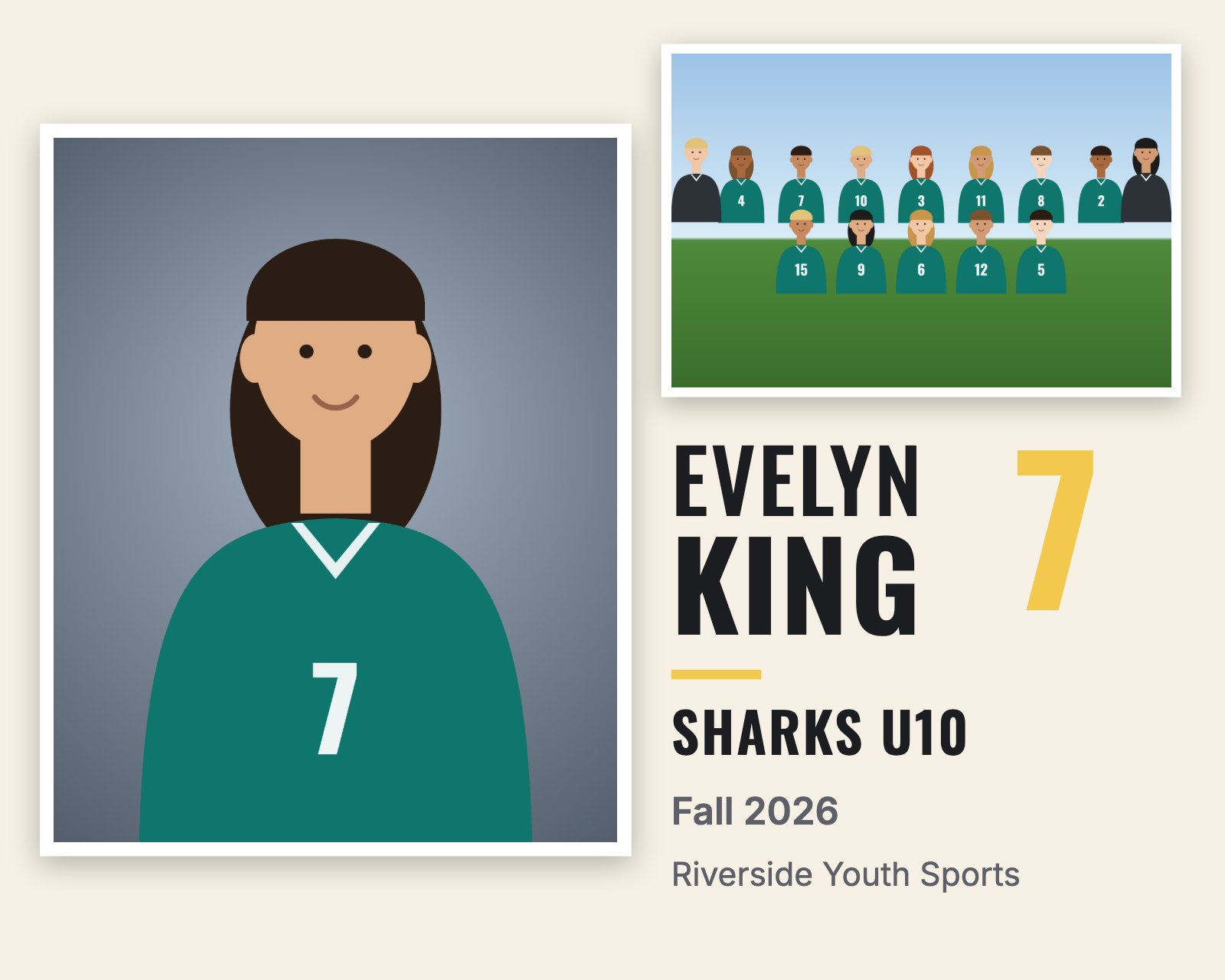
Made in RosterFrame, not Photoshop: name and number from the file name
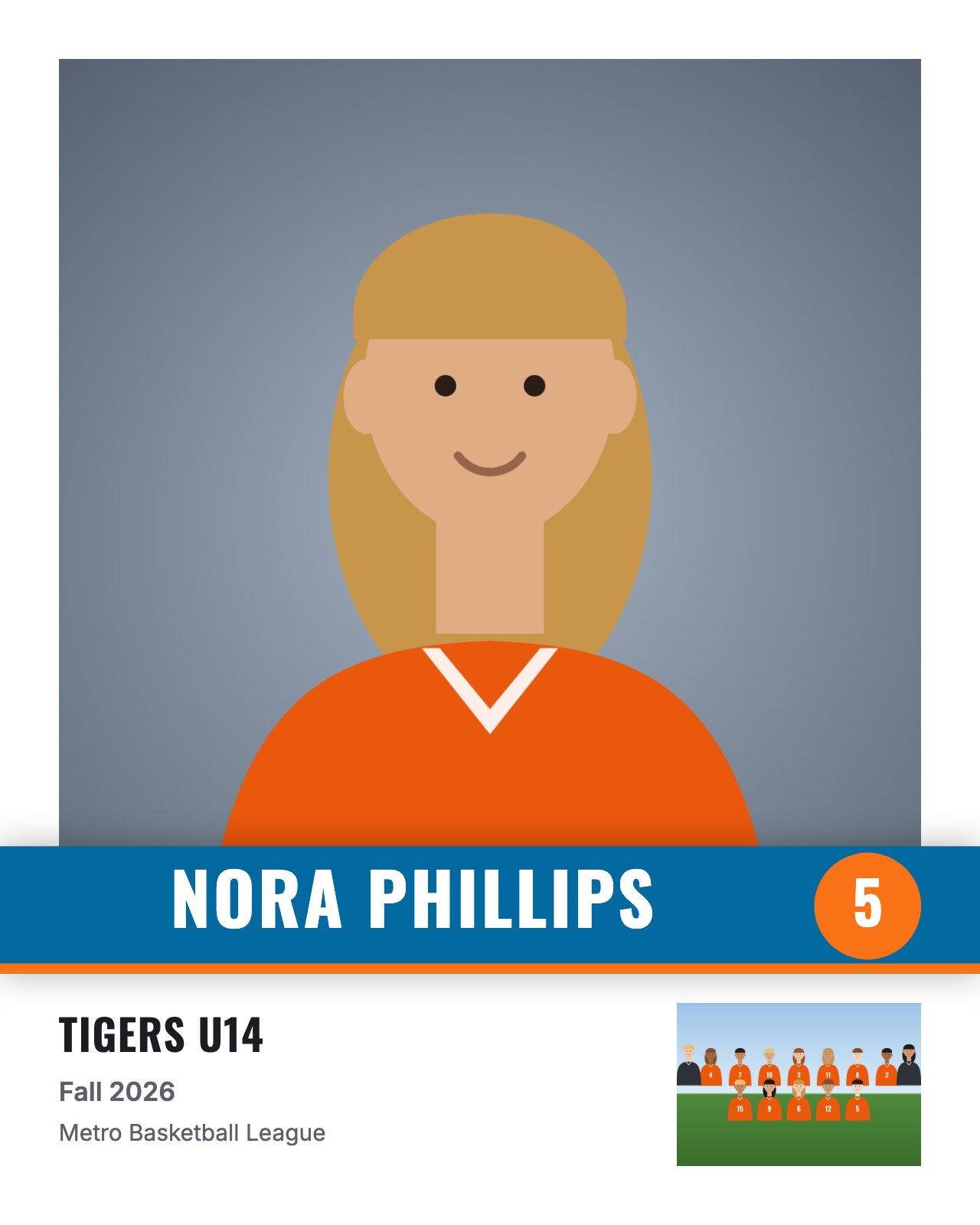
Made in RosterFrame from the same folder, no template file
Sources
- Adobe Photoshop User Guide: Create data-driven graphics (variables, data sets, the text file format, import and Export › Data Sets As Files)
- Adobe Photoshop User Guide: Convert files with the Image Processor
- Adobe Community: "not enough variable names in the first line" (semicolon files and trailing spaces)
How this guide was made: written by Jakob, who builds RosterFrame. Menu paths and the data set file format were checked against Adobe's Photoshop User Guide in October 2026. First published .
Try it with your own photos. Free during beta, no signup, runs in your browser. Your photos never leave your computer.
Open RosterFrame — freeRelated guides
All guides on this topic: Memory mates & cards.