Trading card maker for every player on the team
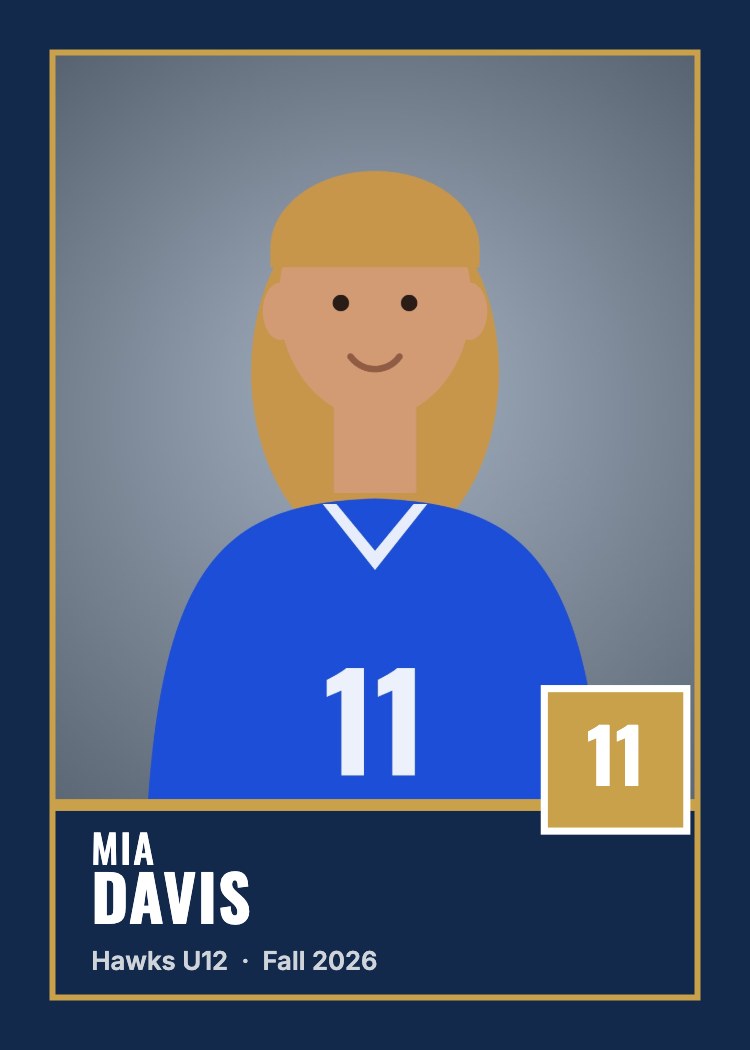
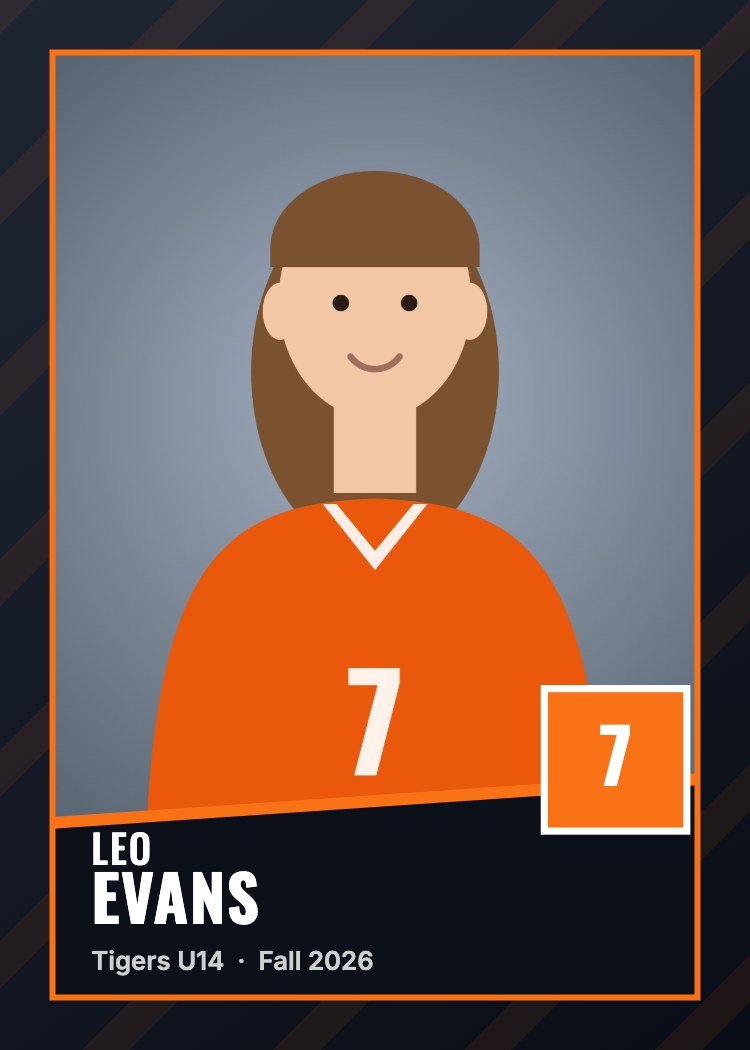
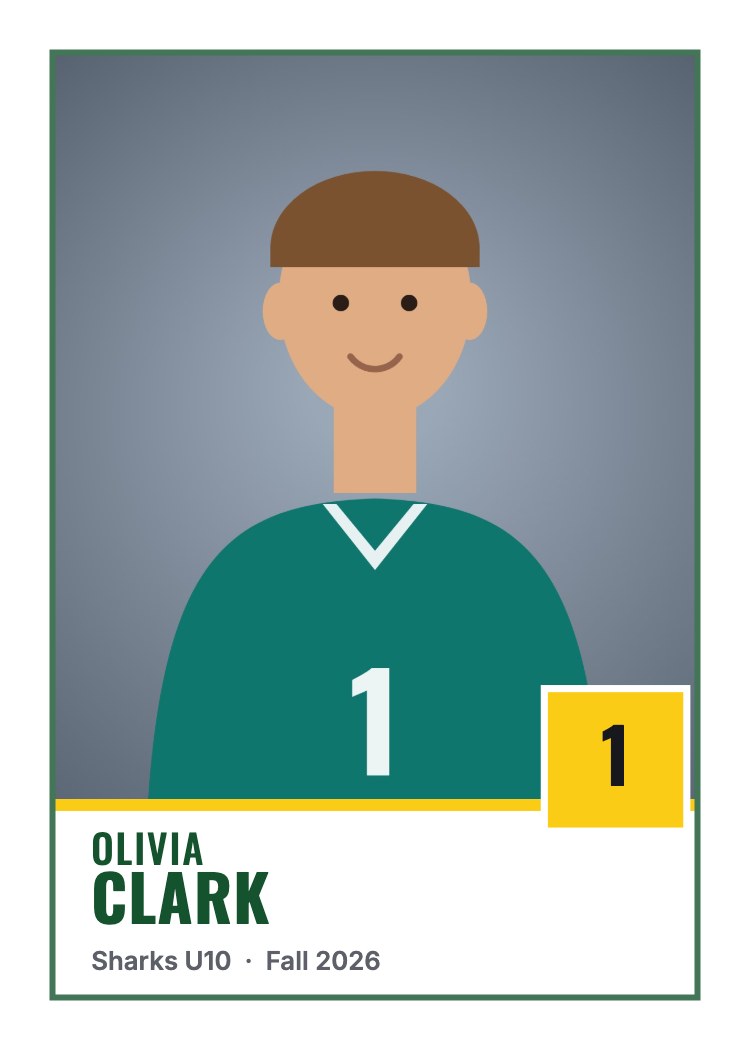
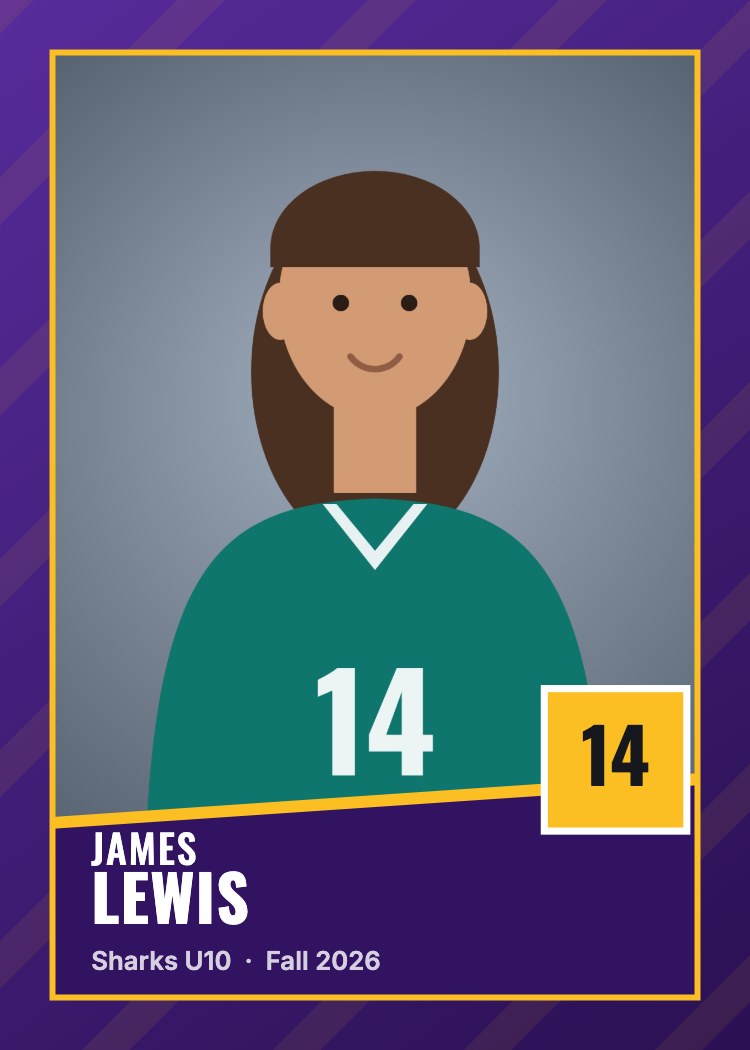
Player trading cards are one of the most popular add-ons in youth sports packages. Kids trade them with teammates, and parents order extras for family. Making them one at a time in a template is slow. RosterFrame makes a card for every player on every team from the same folders you use for composites and memory mates.
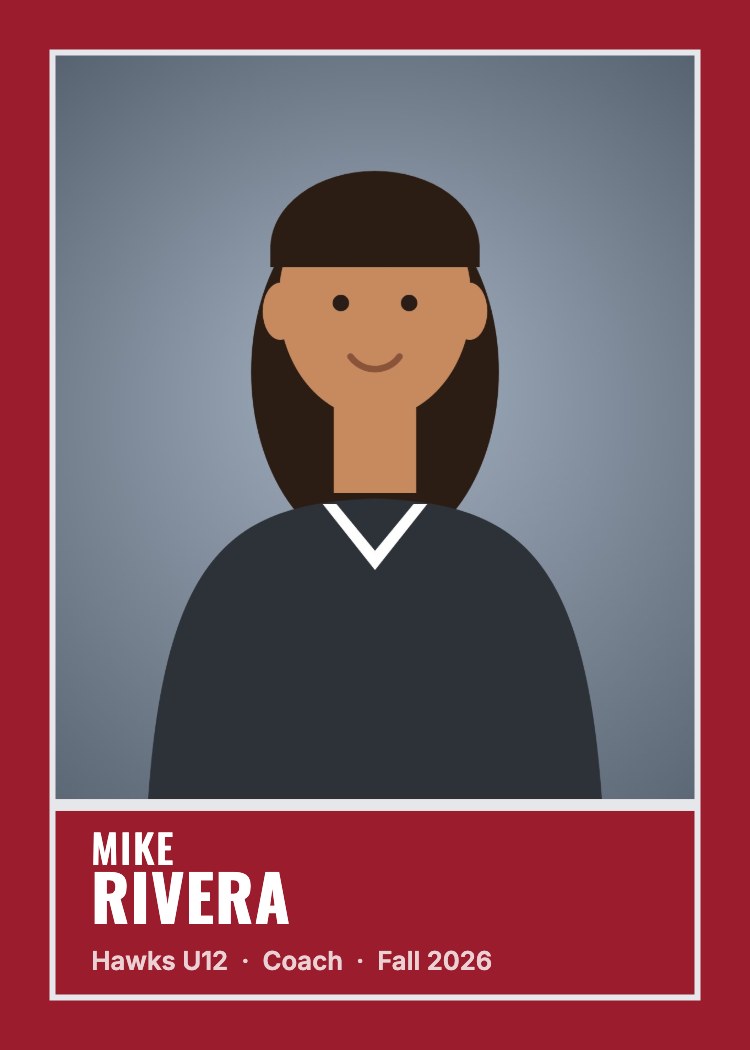
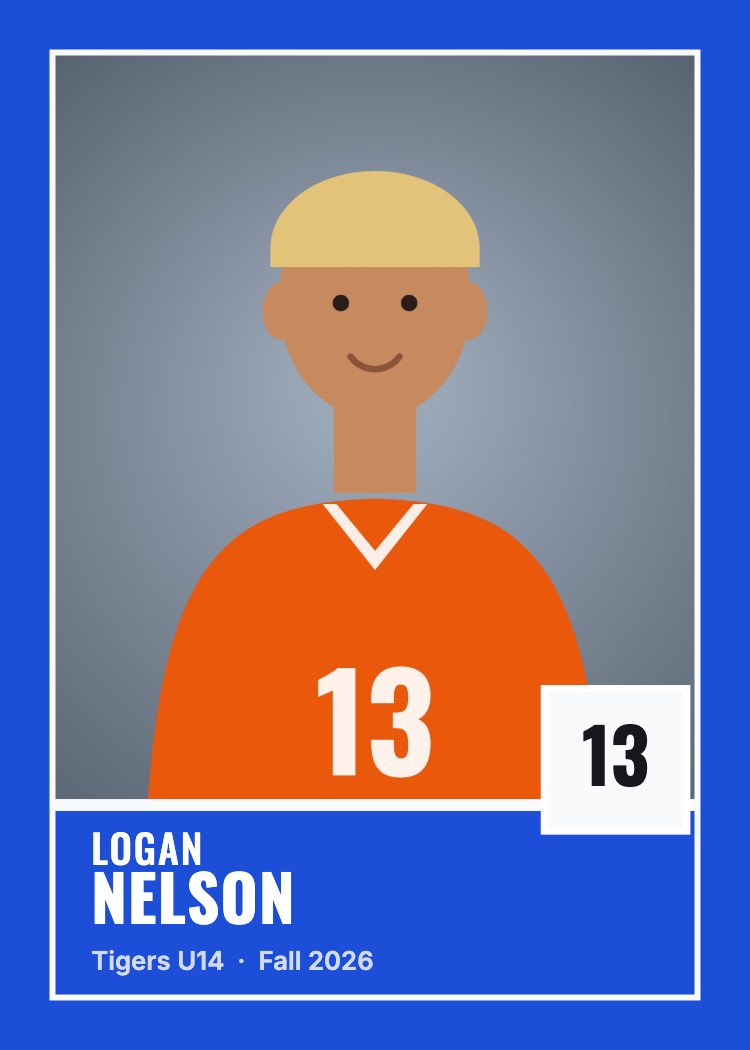
How it works
- Put each team's headshots in their own folder, named like
Ava_Martinez_4.jpg. See how to name your photos. - Drop the league folder into RosterFrame and open the Trading cards tab.
- Pick Classic, Bold or Clean, your team colors and your league logo. Every card updates at once.
- Click Export and tick Trading cards. You get one file per player, named like
Martinez_Ava_4 - Card.jpg, in a folder per team.
Specs
| Trim size | 2.5 × 3.5" |
|---|---|
| Pixels at 300 dpi | 750 × 1050 |
| Bleed | Optional 1/16" on every side: 2.625 × 3.625", 788 × 1088 pixels |
| Format | JPEG (quality 93), sRGB, 300 dpi set in the file |
| File names | Martinez_Ava_4 - Card.jpg, one per player, in a folder per team |
Many labs trim cards after printing and ask for a little extra image around the edge, called bleed. Tick "Add 1/16" bleed for the lab" if your lab asks for it. The border color runs into the bleed, and names and numbers stay well inside the safe area.
What's on each card
- The player's portrait, with the same framing you set for composites.
- First and last name on a name plate in the team color.
- The jersey number in a badge in the accent color.
- Team name and season, and your league logo if you add one.
- Coaches get a card too, labeled Coach, Teacher or Staff instead of a number.
Good to know
- RosterFrame makes the card fronts. Card backs with stats aren't included yet.
- Want more ideas? See all team composite, memory mate and trading card examples.
Try it with your own photos. Free during beta, no signup, runs in your browser. Your photos never leave your computer.
Open RosterFrame