RosterFrame › Guides
How to make team composites for a whole league
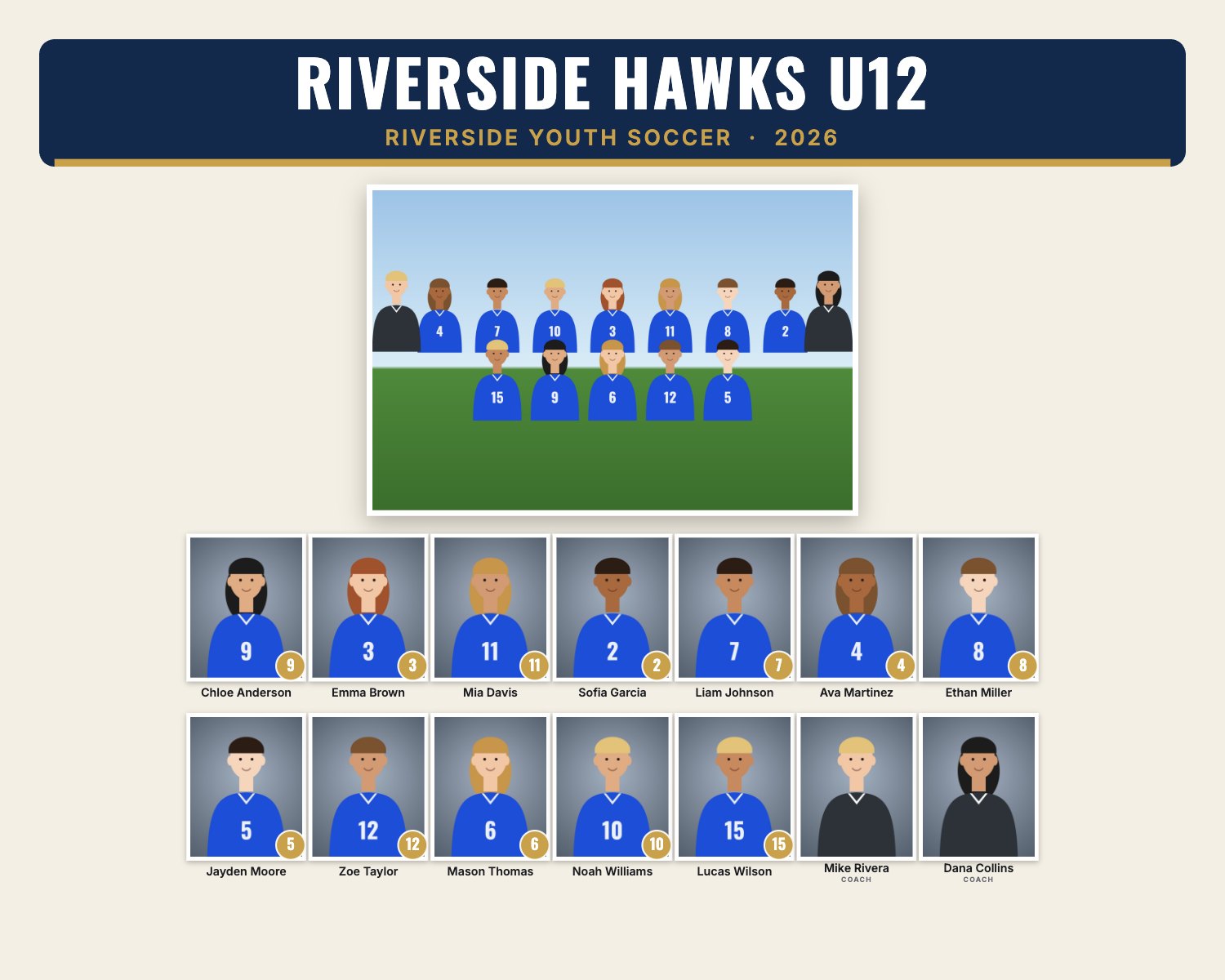
A team composite puts the team photo and every player's headshot, name and number on one print. On picture day you might shoot ten or forty teams, and building each composite by hand in Photoshop or a template takes hours. This guide shows a faster way: prepare your folders once and let RosterFrame lay out every team at the same time.
1. One folder per team
After culling, export your selected headshots as JPEGs into one folder per team, for example Fall League/Hawks U10/, Fall League/Sharks U12/. When you drop the league folder into RosterFrame, every sub-folder becomes a team automatically.
Put the team photo in the same folder and give it a name containing "team" or "group", like Team.jpg. RosterFrame places it at the top of the composite.
2. Get the names in
You have two options, and you can mix them:
- File names. Name files like
Ava_Martinez_4.jpg,4 - Ava Martinez.jpgorMartinez, Ava.jpg. RosterFrame reads first name, last name and jersey number. Put "Coach" in a file name to label coaches. - Roster spreadsheet. If your files are still called
IMG_4821.jpg, export the league roster as CSV with columns File, First, Last, Number, Team and Role. Drop it in with the photos and the names are matched by file name.
Anything that didn't match is highlighted so you can type it in. Sorting by last name, first name or jersey number is one click.
3. Frame the headshots once
Volume shoots usually have consistent framing. Adjust one player's crop and choose "Use for whole team", and every headshot on that team gets the same framing. Fix the odd one out individually.
4. Choose sizes and a look
| Print size | Pixels at 300 dpi | Typical use |
|---|---|---|
| 10 × 8" landscape | 3000 × 2400 | Most popular team composite |
| 8 × 10" portrait | 2400 × 3000 | Small teams, portrait packages |
| 14 × 11" landscape | 4200 × 3300 | Large teams, coach and sponsor prints |
| 7 × 5" landscape | 2100 × 1500 | Budget packages, add-ons |
Pick one of three styles (Classic, Bold, Clean), set the team colors, league name, season and logo. The layout adapts to the number of players automatically, from a 6-player basketball team to a 30-player football roster.
5. Export every team
One export renders a composite for every team as a 300 dpi sRGB JPEG with the resolution written into the file, sorted into a folder per team. Chrome and Edge save straight into a folder on your computer; Safari downloads a ZIP. Upload the folder to your lab as usual.
Tips from picture day
- Keep a consistent background and distance for headshots, so one framing works for the whole team.
- Shoot the team photo a little wider than you think. Composites crop it to around 3:2.
- Check spelling of names before printing. Parents notice.
- Do a test print of one composite at your lab before sending the whole league.
Try it with your own photos. Free, no signup, runs in your browser. Your photos never leave your computer.
Open RosterFrame